
HOW TO USE iScored Today
How to Use Online Scoring
iScored.today is the electronic scoring system connected to Archer’s Diary. It lets one archer on each target enter scores on a phone or tablet so results go straight into Archer’s Diary in real time.
This guide explains how to:
- Open iScored.today on your device
- Log in to an event
- Select the archers on your target and set the scoring order
- Enter scores and correct mistakes
- Retire an archer
- Deregister or change your round for a club shoot
1. What You Need
Before you start:
- A smartphone or tablet with internet access and JavaScript/cookies enabled
- Your Archery Australia membership up-to-date and linked to Archer’s Diary
- To be registered for the event you are scoring (via Archer’s Diary / your club system)
- The flight passcode for the event (announced by the organiser on the day)
2. OPENING iScored.today
- On your device, open a browser and go to https://iScored.today.
- The iScored.today start page will load, showing buttons such as:
- Login to Event
- Login with QR Code
- Event Registration
- Review Scoresheet
ADD iScored.today TO YOUR HOME SCREEN (reccommended)
For a full-screen experience:
- Open iScored Today in your browser.
- Use your device menu to Add to Home Screen / Add to Home Screen shortcut.
- On Android this is done via Chrome; on iOS it must be done in Safari.

Launching from this icon removes the browser address bar and gives you more space for the scoresheet.
3. Logging In to an Event
Option A – Login to Event
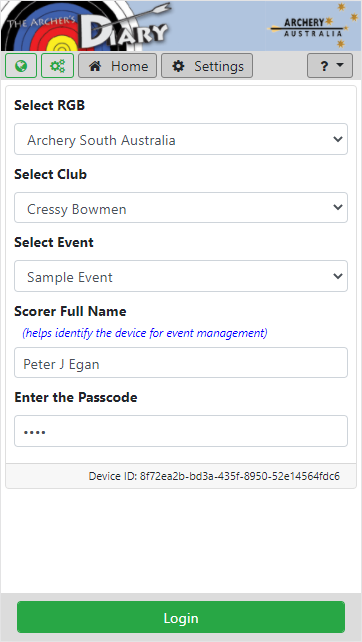
- Tap Login to Event.
- Use the drop-downs to select:
- State / RGB
- Club
- Event (the shoot you are scoring)
- Enter:
- Your full name
- The flight passcode provided by the organiser (often the event date in DDMMYY format, but follow the instructions given on the day).
- Use the flight drop-down to select the flight you’ve been allocated to.
Option B – Login with QR Code (if provided)
If the organisers display a QR code for the event:
- Tap Login with QR Code.
- Allow camera access if prompted.
- Scan the QR code; the event and flight details will be filled in automatically.
(If QR codes are not used at your club, just use Login to Event.)
4. Selecting Archers and Scoring Order
Once you are logged in and have chosen the flight:
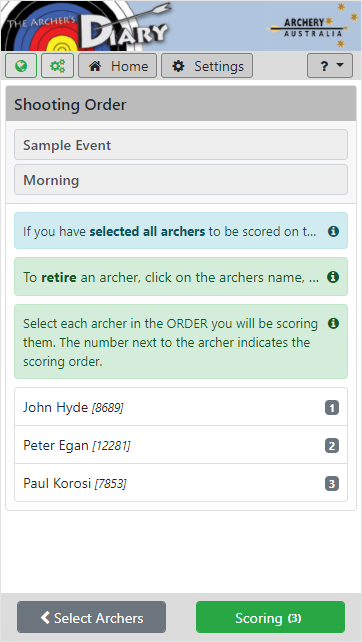
- iScored.today shows a list of all archers registered for that flight.
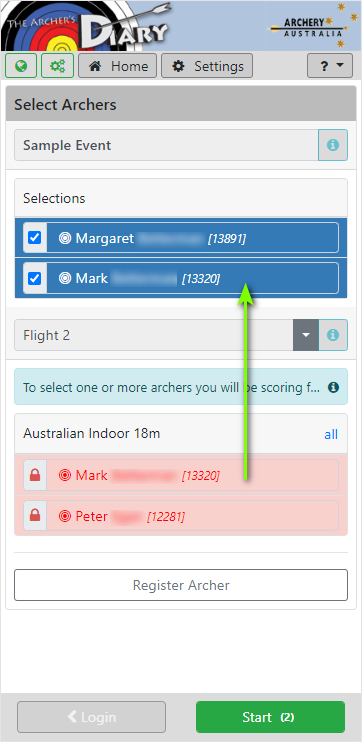
- Tap the names of the archers on your target:
- Archers you select appear in one colour (e.g. blue).
- Archers already selected by someone else appear in another colour (e.g. red).
- If needed, you can also register another archer on your target from this screen (for late changes allowed by the organisers).
- Tap Scoring Order (or similar) and choose the order in which you will call and enter scores.
- Tap Scoring / Score to open the electronic scoresheet.

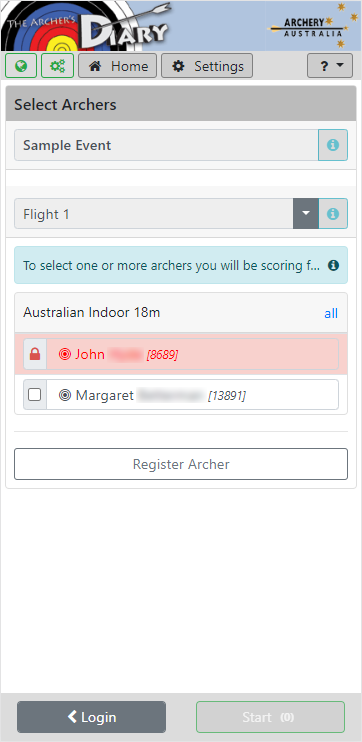
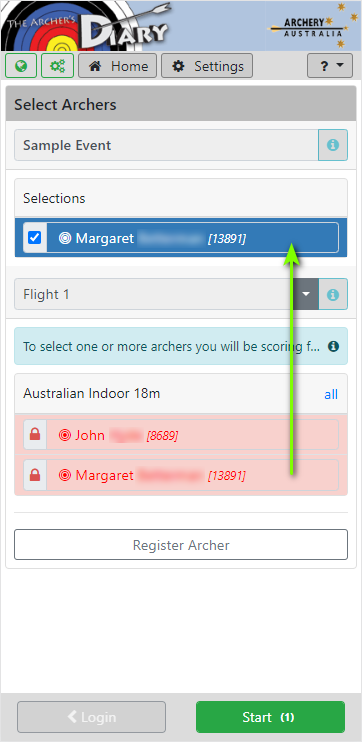
and the archer row will change to red to indicate that the archer has been selected.
5. Using the Electronic Scoresheet
The main scoresheet screen shows:
- Each archer on your target
- Ends and running totals for the round
- Buttons such as Add Scores, Retire Archer, and Sign Out (wording may vary slightly).
Entering scores for an end
For each end:
- Tap Add Scores.
- For the first archer, enter each arrow value using the keypad (including X and M for misses).
- When you have entered the required number of arrows for that end, the keypad will grey out.
- Tap the next archer’s name (usually shown on a green button) and repeat.
- When all archers on the target have been scored for that end, you return to the main scoresheet.
- Tap Add Scores again to start the next end.
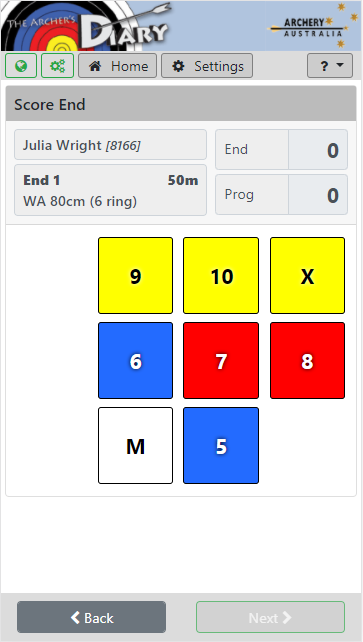
If you entered this screen by accident, press on the Back button to return to the Scoresheet page.
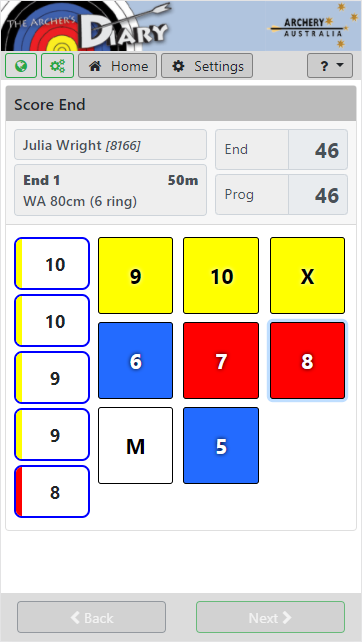
Press on the button representing the arrow scores for each arrow.
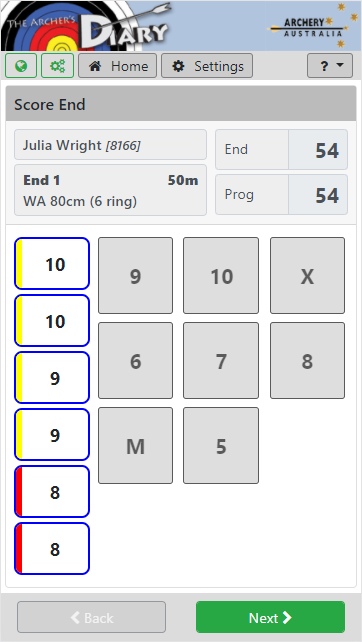
When all arrow scores for the end have been entered, the keypad will disable, the End total and Progressive total for the range will be displayed, and the Next button will become active.
If you make an error in selecting an arrow, click on the arrow score to remove it, then re-enter the correct arrow score.
The scoresheet updates progressive totals for each archer as you go.
Correcting a mistake while scoring
- If you tap the wrong score, use the on-screen controls to clear or change it before finishing the end.
- If you notice an error after the end is saved, speak to the Field Captain or event manager; they can use the Archer’s Diary tools to adjust the result if allowed by the competition rules.
Retiring an archer mid-round
If an archer withdraws part-way through:
- From the scoresheet, tap Retire Archer (or Archer Order then choose Retire Archer, depending on version).
- Select the archer who is retiring.
- Confirm the retire action.
- The archer will be marked as retired and removed from the scoring order.
- Tap Scoring to return to the scoresheet and continue for remaining archers.
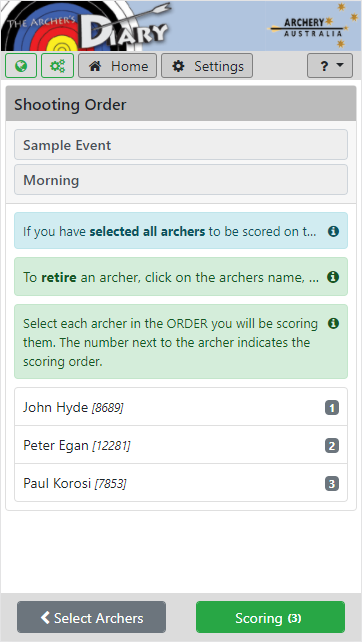

Press on the Scoring button to continue.
You will no longer be required to enter scores for this archer.
6. Finishing the Round and Signing Out
When all ends have been completed:
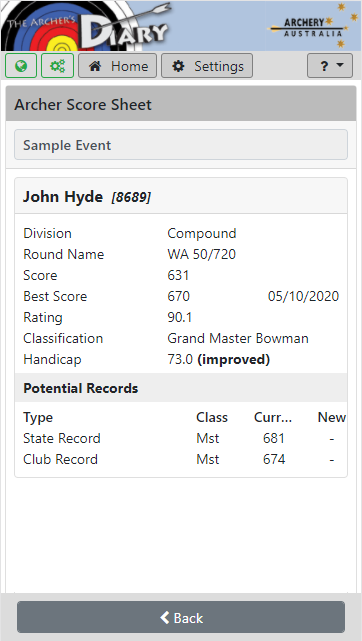
- The scoresheet shows a summary for each archer: round score, personal best, rating and classification (where available).
- Confirm that the totals match your paper scoresheet (if used).
- Tap Sign Out to finish scoring.
Most competitions still require double scoring (one electronic + one paper scoresheet) and signed paper cards for the scores to be official. Always follow the instructions provided by the event organisers.
7. Registering, Deregistering or Changing a Round (Club Shoots Only)
These functions are only available for club events, not for RGB / AA / WA-registered tournaments.
7.1 Registering (or adding yourself) to a club event
You can add yourself to a club shoot directly from iScored.today:
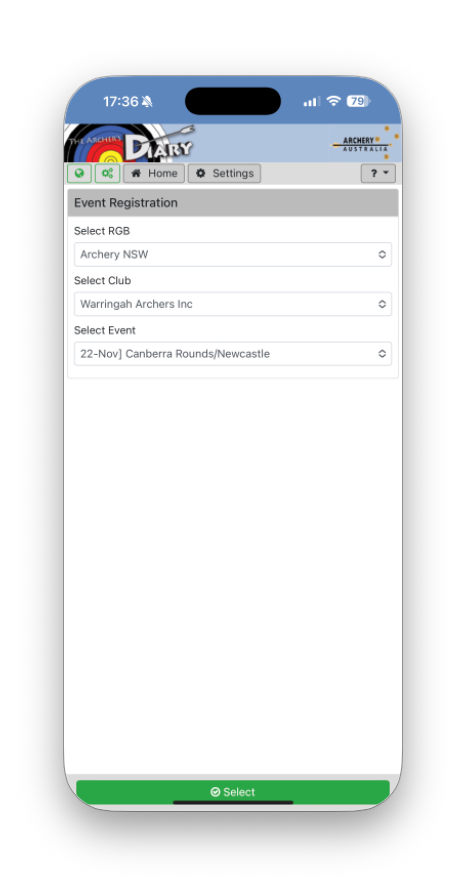
- From the start screen, tap Event Registration.
- Use the three drop-downs to select:
- RGB / State
- Club
- Event
- Tap Select.
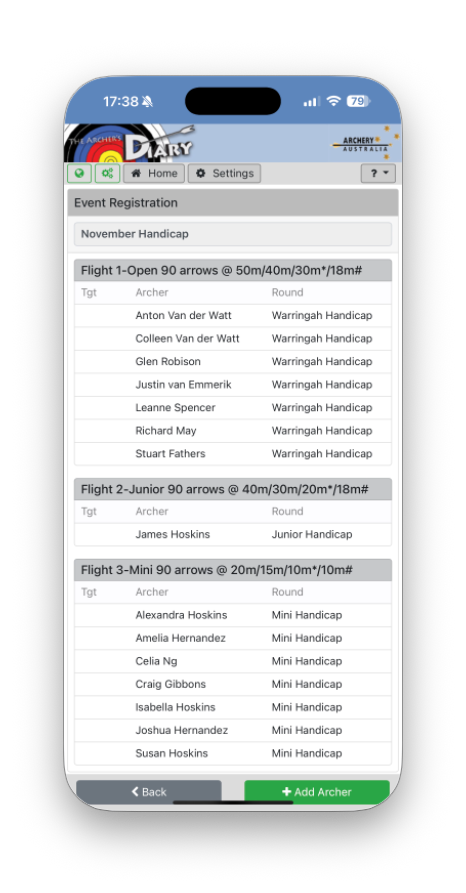
- Tap + Add Archer.
- Again select the RGB, Club and Event, then tap Select.
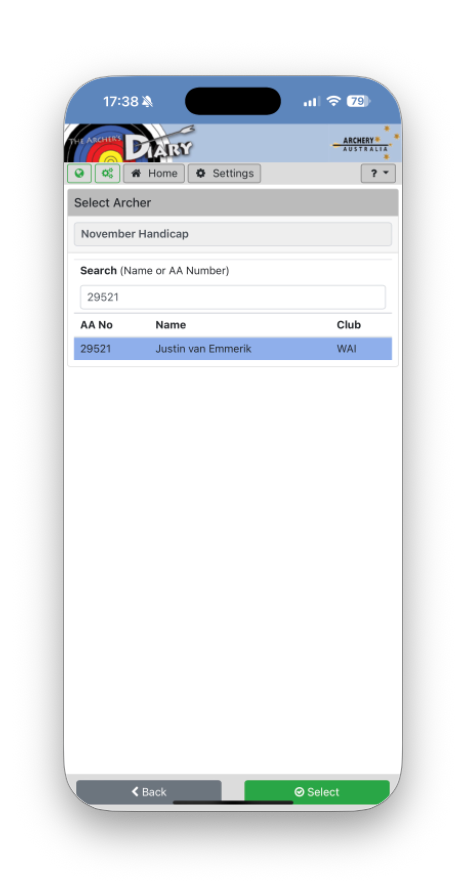
- Type your name into the Search field and select your entry in the list.
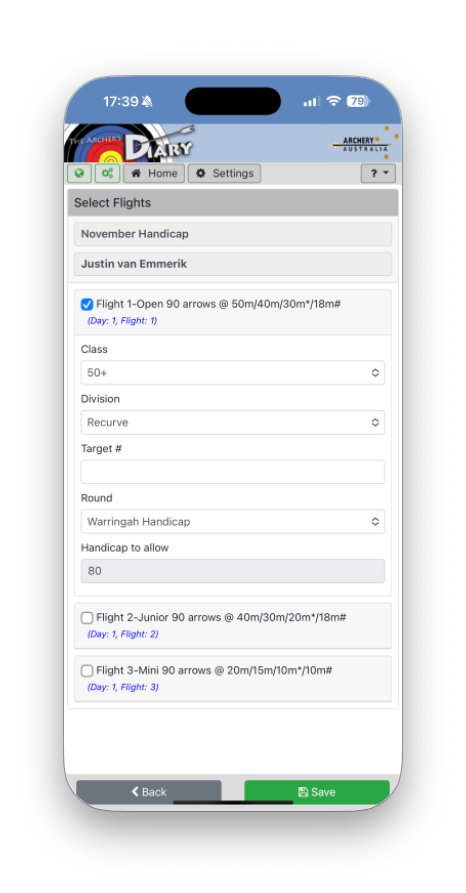
- Tap Select to open the Select Flights page.
- Tick the flight/round you want to shoot, confirm your class/division, and enter the target number if known.
- Tap Save to complete registration.
7.2 Deregistering from a club event
To completely remove yourself from a club shoot:
- Tap Event Registration on the iScored.today start screen.
- Select the RGB, Club and Event you are currently registered for, then tap Select.
- Tap + Add Archer.
- Again select RGB, Club and Event, then Select.
- Search for your name, select it, and tap Select.
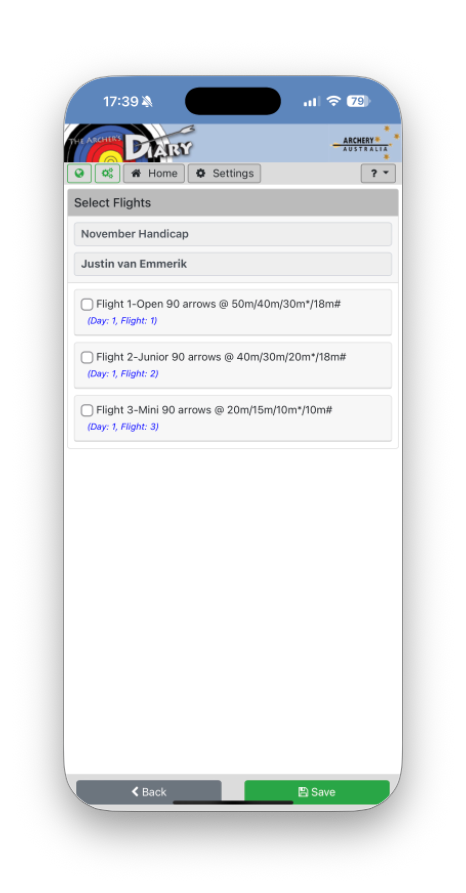
- On the Select Flights page, clear the tick next to the round/flight you are registered for.
- Tap Save. Your name is removed from that event’s registration list.
7.3 Changing your registered round for a club event
If you want to change from one round to another in the same club event:
- Follow steps 1–5 above to open the Select Flights page for your entry.
- Untick the box for the current round.
- Tick the box for your new preferred round.
- Check that class/division and target are correct.
- Tap Save. Your registration is updated to the new round.
8. Reviewing Your Scores Later
After the event:
- You can browse to Archer’s Diary and view your scores, ratings, classifications and history.